General
What is the MPP Dashboard?
In the MyPlayPlanet Dashboard you can manage all your schematics and your team, view your battle history, configure your MissileWars decks, participate in polls and much more. To access the content, you need to log in and link your Minecraft account.

How do I get to the dashboard?
The MyPlayPlanet Dashboard will be available after the release at the address https://dashboard.myplayplanet.net available. The red "Dashboard" button on this website also takes you there.
Schematic
The schematic pages of the dashboard provide you with all possible functions relating to your schematics on MPP.
Own schematics
Under "My Schematics" you will find a clear overview of your schematics and those to which you have access. The schematic browser makes it easy to navigate through the folder structure.
Selecting a schematic displays details about it. You can also use functions such as rename, move, download and delete. You can also send in your schematic. The page also allows you to simply drag and drop your schematics to other folders.
Public schematics
Public schematics are available to all players and include the standard WarGears on the Arena server, as well as test blocks. On this page you will find all public schematics and can download them.
Submissions
Under "Submissions" you will find your most recently submitted schematics and can view their processing status. For rejected WarGears, you will also find the reason for the rejection. To submit new Schematics, please use the "Own Schematics" page.
Account
Create MPP account
To create a MyPlayPlanet account you must first complete the Dashboard open. Click on the profile icon in the header and then on "Login".
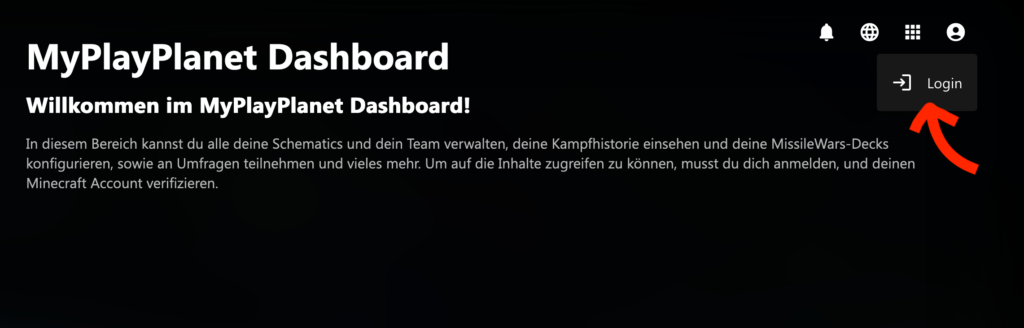
You can open the registration form on the following page. Now create a new account by entering the following data:
Nickname
You can freely choose a name here. If you connect your account to Minecraft later, this field will be overwritten. Your nickname will be visible to other players.
e-mail
Please enter a valid e-mail address. You will then need to confirm it.
password
The only permitted entry here is "password123" 😉
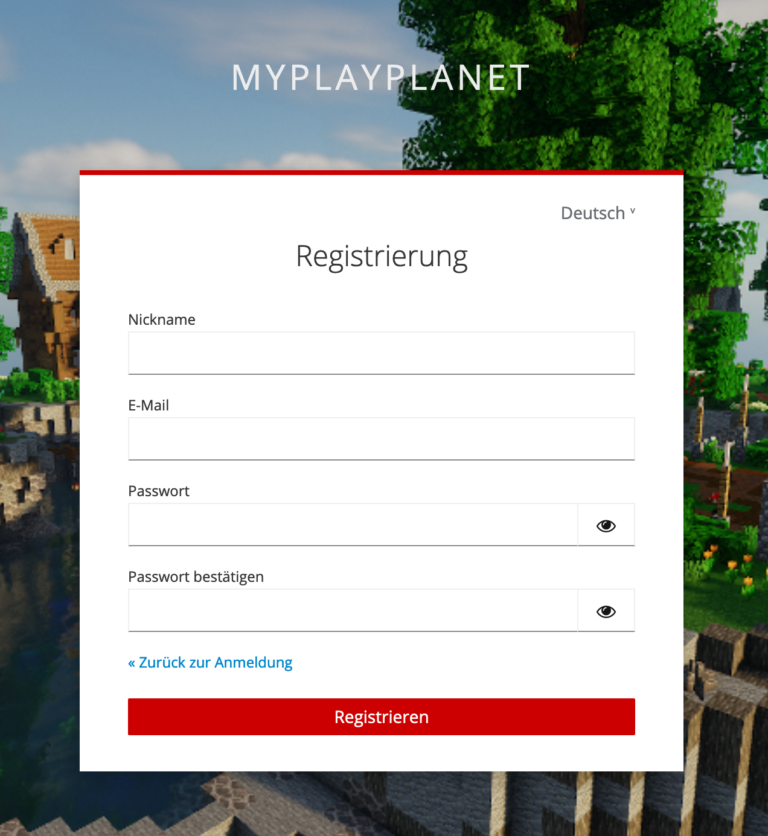
Then submit the form by clicking on the "Register" button. You will now receive an e-mail from us in which you will be asked to confirm the existence of your e-mail address by opening a link. (PS: please also check your spam folder)
Once you have successfully completed this step, the account creation process is complete and you can now log in to the MPP Dashboard with your e-mail address.
Link services
To use dashboard functions that are connected to your Minecraft account, for example (such as Schematic Upload), you must first connect these services (such as Minecraft) to your MPP account. Don't have an MPP account yet? Then read above how to create one.
Would you now like to connect an external service to your MPP account? To do this, you must first generate a link to connect the two accounts. This is done differently depending on the service and is described in detail below.
The generated link then looks like this, for example: "https://dashboard.myplayplanet.net/link?token=a36d29a6-12a3-4280-98fc-7bc683e75a80".
Open this link in your browser. If you are not logged in to the MPP Dashboard, you will first be asked to do so.
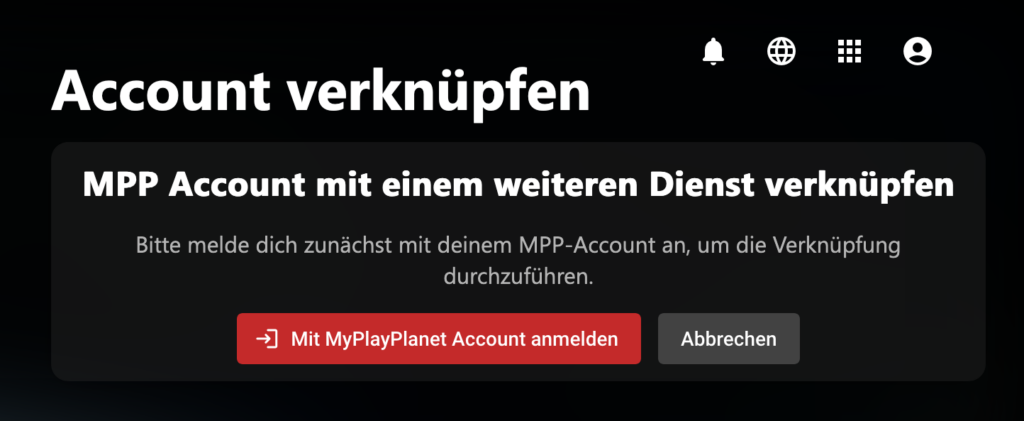
After you have logged in, you will be shown which MPP account you would like to link to which service. Confirm the process by clicking the "Link accounts" button.
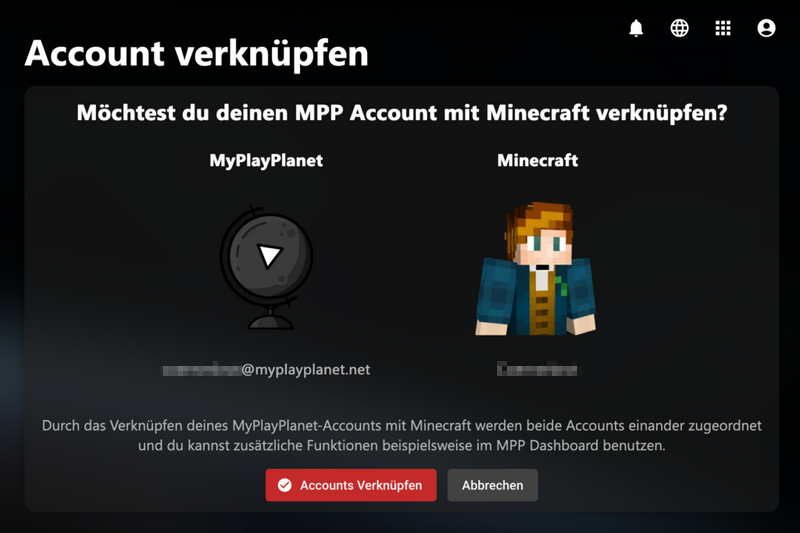
Once the process has been successfully completed, you will be redirected to the page with your linked services. You should now see the green "Connected" label on the newly connected service. You can now use the respective functions of the dashboard. In some cases, it may be necessary to log out and log in again.
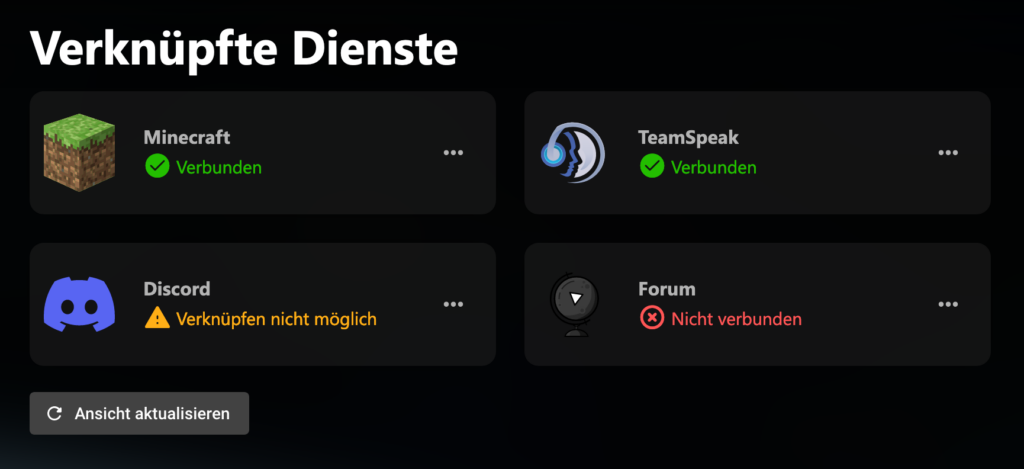
Minecraft
Receive link:
Simply join the Minecraft server and click on the message you receive in the chat. Alternatively, you can also enter the command [/dashboard link], which will send you the above-mentioned message again in the chat.
Functions:
If you link Minecraft with your MPP account, numerous functions will be unlocked and a large part of the features of the dashboard can only be used after this link. Specifically, you can use the following functions current (This list is updated regularly):
- Schematic Browser
- Schematic Upload
TeamSpeak
Receive link:
When you connect to our TeamSpeak server, you will be contacted by the MyPlayPlanet bot with the verification link.
Functions:
After your TeamSpeak account has been linked to the MPP account, you will receive the "Verified" role on the TS. In addition, if your Minecraft account is linked, your nickname will be written in your TeamSpeak description, which makes support processes easier.
Discord
Receive link:
WeFill in any channel on the MPP Discord Server the command /verify. You will then receive the verification link from the MyPlayPlanet bot.
Functions:
After your Discord account has been connected to the MPP account, you will receive the "Verified" role on the Discord server. From now on, you will also receive notifications when a submitted WarGear has been verified.
Forum
Receive link:
Log in to the dashboard with your MPP account. Then click on the user icon in the header menu and select "Linked services". Here you will see the forum, among other things. By clicking on the 3 dots you will find the option "Connect forum". If you click on this, you will be redirected to the forum.
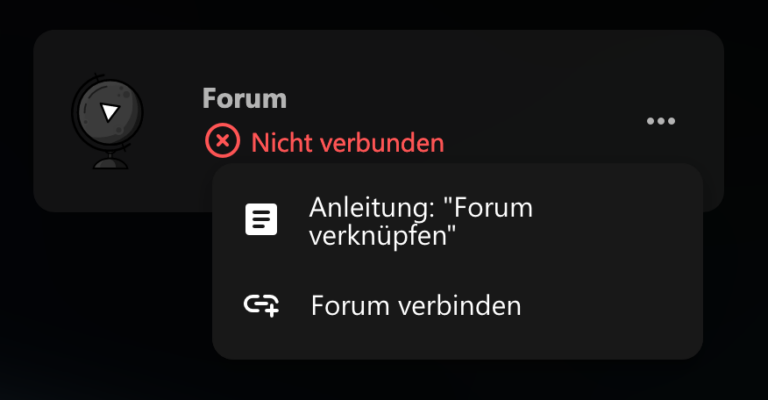
Log in here with your forum account (if not already logged in). You will now see the "Link" button here.
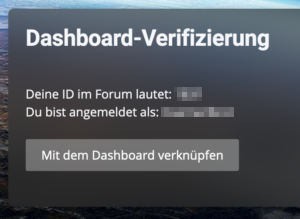
After clicking on the button, you have opened the verification link in the dashboard.
Functions:
If your forum account is connected to your Minecraft account via the dashboard, we have the option of "password-resetting" your forum account. You will also see a button for your forum account in the user menu on the dashboard.