Quests
General
To accept a quest, [right-click] on an NPC with a speech bubble in front of its name.
You can now use [W] and [S] to choose between your answer options and confirm the one you want with [Spacebar].
Daily quests
You can accept the daily quests once a day at the quest board in the Adventurers' Guild in New Eden. If you do not complete the quest within one day, the quest will be cancelled for you.
If you forget what your task was, you can always go to the quest board and check it there.
Quest rucksack
Enter the command [/backpack] to open the quest backpack.
Quest Compass
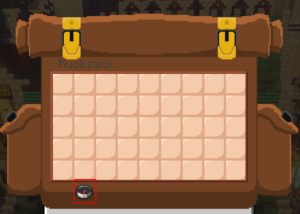
Open the quest rucksack and click on the compass at the bottom left.
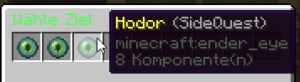
Now click on the quest you want to follow. A yellow title indicates a side quest and a green title indicates a main quest.
Your compass will then point to the NPC where you can continue the quest.
Farm world
Join the farm world
Use the command [/farm] and select the farm server you want to farm on. To leave the farm world, go to the spawn or your home.
Fuse
Save blocks
You can secure your chests, boxes etc. to keep important items safe.
To do this, enter the command [/cprivate] and click on the relevant chest, after which it is saved.
With [/cremove] and then clicking on the chest, you can cancel this backup. Use the command [/cmodify NAME] to add one or more other persons, with [/cmodify NAME] you can also remove these people again.
You can also protect chests, boxes, etc. with a password. To do this, you must use the command [/cpassword PASSWORD] and click on the corresponding object.
Secured chests, boxes, etc. can only be dismantled by the "builder" or an additional person.
Creatures
Dragon
Taming
The dragons spawn at different points on the spawn. Tame the baby dragons by giving them dragon's milk three times. But watch out, the older dragons will attack you.
Develop
Let your dragon grow up with the help of a dragon orb. You can obtain this through a quest.
Shops
Create shops
To do this, you need to place a chest, etc. and attach a sign one block away. You can place the sign above the chest, etc., for example.
Then you have to add some information to the sign:
- Line 1: This line remains empty, the plugin automatically recognises who created the shop.
- Line 2: Here you enter a quantity, e.g. 1. Then only one piece of an item is bought/sold at a time.
- Line 3: Now you have to enter B COUNT : COUNT S. The number at B means that you want to buy the quantity stated in line 2 for this price. The number at S means that you want to sell the quantity stated in line 2 for this price. For example, if you enter "B 10 : S" you buy an item for 10 Stars, if you enter "B : 10 S" you sell an item for 10 Stars.
- Line 4: Here you either enter the exact name of the item in the chest, etc. or preferably a "?". With the question mark, the plugin automatically recognises what is to be sold/purchased.
Gates
Create gates
Place a sign next to the gate. The second line must contain ["Gate" in square brackets]. You can find more information about creating a gate here.
Dungeon
General
Der Entdecker Außenposten ist der Start, jeder Expedition in die Dungeons. Du erreichst Ihn über den Hafen im Süden der Spawnstadt. Rede hierfür mit Captain Hestia, sofern du diese Konversation bereits freigeschalten hast. Die Konversation wird mit der Main-Quest Reihe freigeschaltet.
Gebe acht! In Dungeons ist es gut möglich, dass du deine Items verlierst oder das deine Rüstung großen Schaden nimmt. Unterschätze die Schwierigkeitsgrade nicht und taste dich langsam heran. Es ist sinnvoll eine Expedition nicht alleine zu starten.
Solltest du an einer Stelle des Dungeons feststecken kannst du dich mit [/stuck] befreien.
Partys
Partys erlauben es dir mit mehreren Spielern einen Dungeon zu spielen.
[/party invite <player>] – lädt einen Spieler in deine Party ein.
[/party join <player>] – tritt der Party eines anderen Spielers bei.
[/party leave] – verlasse eine Party.
[/party givelead <player>] – übergebe die Führung einer Party.
[/party kick <player>] – kicke einen Spieler aus deiner Party.
[/party disband] – lösche deine Party.
[/party chat] – wechsle zum Party Chat.
[/party chat <message>] – schreibe eine Nachricht an den Party Chat.
Scoreboard
General
Wähle zwischen verschiedenen Optionen für dein Scoreboard aus.
Du entscheidest was angezeigt werden soll und was nicht.
Folgende Optionen stehen dir zur Verfügung:
– Aktuelle Stadt
– Deine Stadt
– Kontostand
– Uhrzeit
– Gilden Ansehen
Commands
Zum ändern kannst du folgende Befehle ausführen:
[/scoreboard editor] – ändere dein Scoreboard
[/scoreboard reset] – setze dein Scoreboard zurück.